Creating a card for active power consumers

A few months ago I heard about the auto-entities plugin and I decided to try it out. The result? A card that shows me the active power consumers in the house so I can turn any of them off easily. Here's how it looks like:
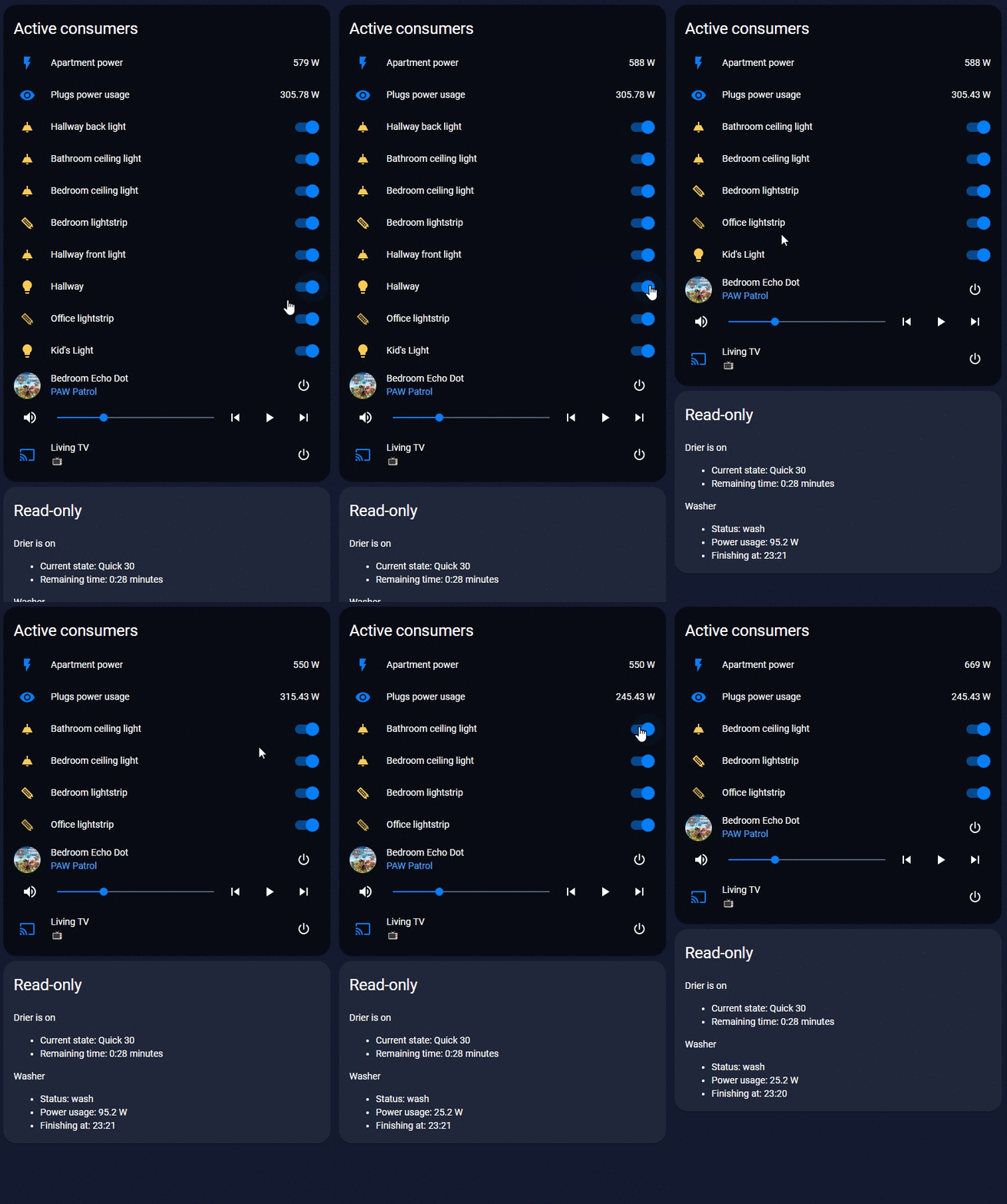
In this blog post I'm going to show you how I made it with a few lines of YAML, but first I'm going to describe how the card works.
My card is actually a vertical stack divided in two cards:
1. Devices with full access
These are devices that I can control from Home Assistant so I can turn them on/off (TVs, lights, smart plugs, etc.) or decrease their consumption (dimming a light). In the recording above you can see that it updates and removes a light once I turn it off, and I can also control media players easily.
2. Read-only devices
These are devices that have read-only integrations with Home Assistant. For example, my LG drier has a HACS component that allows me to see the current schedule, the time left, state(on/off), but I can't stop it from Home Assistant. I either do this manually using the buttons from the drier, or from the official LG app if I activated its WiFi module before. Same thing applies to my Samsung washer which has a SmartThings integration for Home Assistant that is read-only as well.
I'll start by showing you the entire YAML code, and then I'll go over it piece by piece:
The first few lines are self-explanatory, you can set the title of the card, decide if you show a toggle button for all the entities, etc.
Things get interesting from the line 15 where the filter starts. For this card, I preferred to filter the entities manually using jinja template, but you can do it easier if you look at their documentation. The reason I went with a template filter is because I have to also display some custom data, like the remaining time for the washer for example.
Auto-entities can also show certain entities without filtering them, so in this case you'll see the first two lines with the current consumed power.
filter:
  template: |
     sensor.apartment_power_adjusted
     sensor.plugs_consumption_summed
The first sensor is my Shelly EM which reports the entire power consumed in my apartment. The second one is the summed power of all my smart plugs.
Then I show all the lights that are turned on. This can be done with in the template like this:
{% for light in states.light %}
    {% if light.state == "on" %}
        {{ light.entity_id}}
    {% endif %}
{% endfor %}
However, if you want an easier way, you could also show them like this:
filter:
  include:
    - domain: light
      state: "on"
      options:
        tap_action:
          action: toggle
Just go over their examples, you'll find many ways of filtering entities and you can pick whatever is best for you.
After the lights, I show my media players. This includes a Chromecast, a smart TV, and a bunch of Echo dots, but I show all of them in a single loop because they are all media players.
{% for media_player in states.media_player %}
  {% if media_player.state != "standby" and media_player.state != 'off' and media_player.state !='unavailable' %}
    {{ media_player.entity_id}},
  {% endif %}
{% endfor %}
The last type of device that I show are the air conditioners:
{% for climate in states.climate %}
  {% if climate.state != 'off' and climate.state !='unavailable' %}
    {{ climate.entity_id}},
  {% endif %}
{% endfor %}
These are all my entities which I can control from Home Assistant. Next, we'll go over "read-only" entities.
Read-only entities
This is actually a separate card, which is shown only if my dryer or my washer are on. This can be done with this condition:
- type: entity-filter
  entities:
    - sensor.dryer
    - switch.washer
  state_filter:
  - "on"
  show_empty: false
So, when any of them is on, the card below will be displayed in the Lovelace UI:
card:
            type: markdown
            title: Read-only
            theme: 'transparent'
            content: |
              {% if is_state("sensor.dryer", "on") %}
                Drier is on
                - Current state: {{states.sensor.dryer.attributes.current_course}}
                - Remaining time: {{states.sensor.dryer.attributes.remain_time}} minutes
              {% endif %}
              {% if is_state("switch.washer", "on") %}
                Washer
                - Status: {{ states.sensor.washer_job_state.state }}
                - Power usage: {{ state_attr('switch.power_2', 'current_power_w') }} W
                - Finishing at: {{ strptime(states('sensor.washer_completion_time'), '%Y-%m-%dT%H:%M:%S.%fZ').hour + 2 }}:{{ strptime(states('sensor.washer_completion_time'), '%Y-%m-%dT%H:%M:%S.%fZ').minute }}
              {% endif %}
Things are a bit complicated here, so let me explain what all of this does line by line. First, I check if the dryer is on, and if it is, then I show this part:
 Drier is on
- Current state: {{states.sensor.dryer.attributes.current_course}}
- Remaining time: {{states.sensor.dryer.attributes.remain_time}} minutes
I do the same thing for the washer, only here I also show the power usage because my washer is connected to a smart plug which is integrated in Home Assistant. Unfortunately, the washer completion time is not formatted, so I convert it like this:
- Finishing at: {{ strptime(states('sensor.washer_completion_time'), '%Y-%m-%dT%H:%M:%S.%fZ').hour + 2 }}:{{ strptime(states('sensor.washer_completion_time'), '%Y-%m-%dT%H:%M:%S.%fZ').minute }}
              {% endif %}
I know, it's not pretty, and I have to find a better way of converting the date from UTC to my time zone, but for the moment it works just fine.
The auto-entities plugin is really powerful, this is just the tip of the iceberg in my opinion, but I hope you'll find it useful!
About the author
Expert generalist • Independent Contractor • Microsoft MVP • Home Assistant enthusiast Hi there! I'm Bogdan Bujdea, a software developer from Romania. I'm currently a .NET independent contractor, and in my free time I get involved in the local .NET community or I'm co-organizing the @dotnetdays conference. I consider myself an expert generalist, mostly because I enjoy trying out new stuff whenever I get the chance and I get bored pretty easily, so on this blog you'll see me posting content from programming tutorials to playing with my smart gadgets.
Comments
Join the discussionI am looking to do just this, but struggling with the documentation, you mention you have shown the whole yaml, but I cant see it, would yu mind sharing the complete code please